4K Images

Runs 100% in your browser · nothing uploaded

Upscale any image to 4K without uploading it

Edge-aware upscaling, adaptive sharpening and optional cleanup, running on your own device. Free, with no sign-up and no watermark.

See the difference
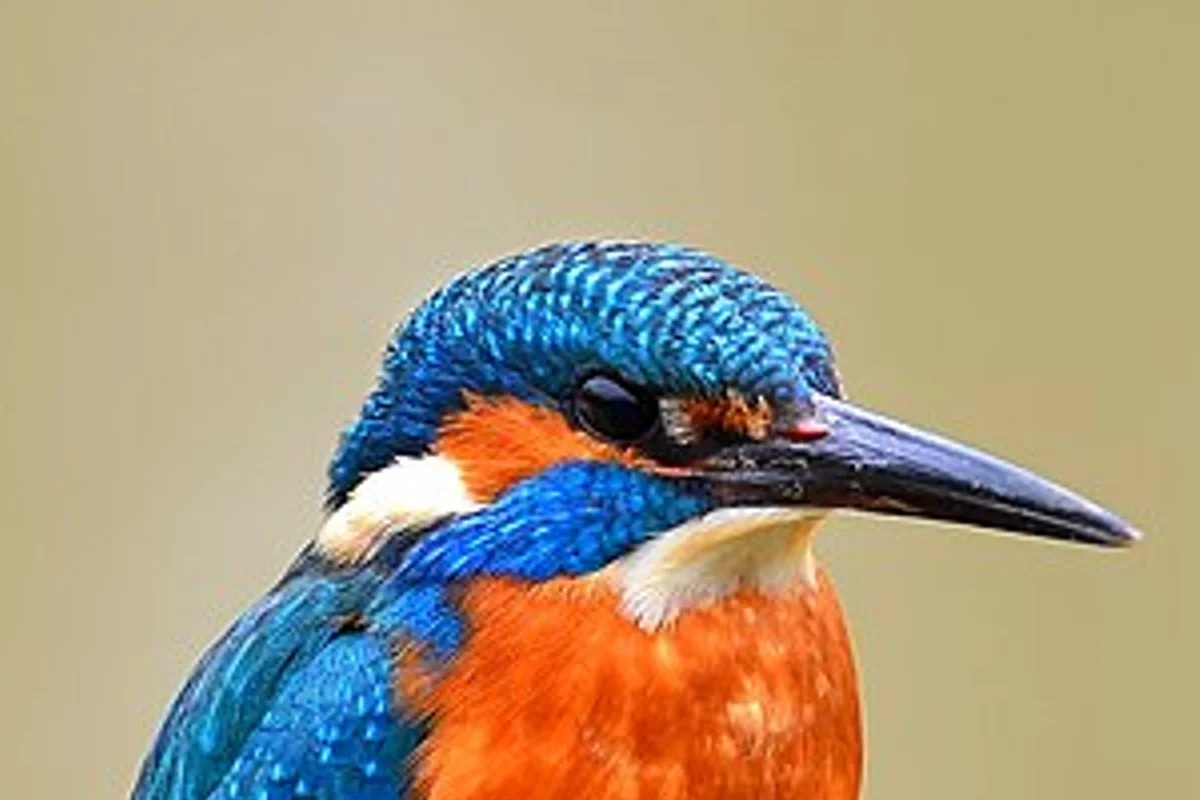
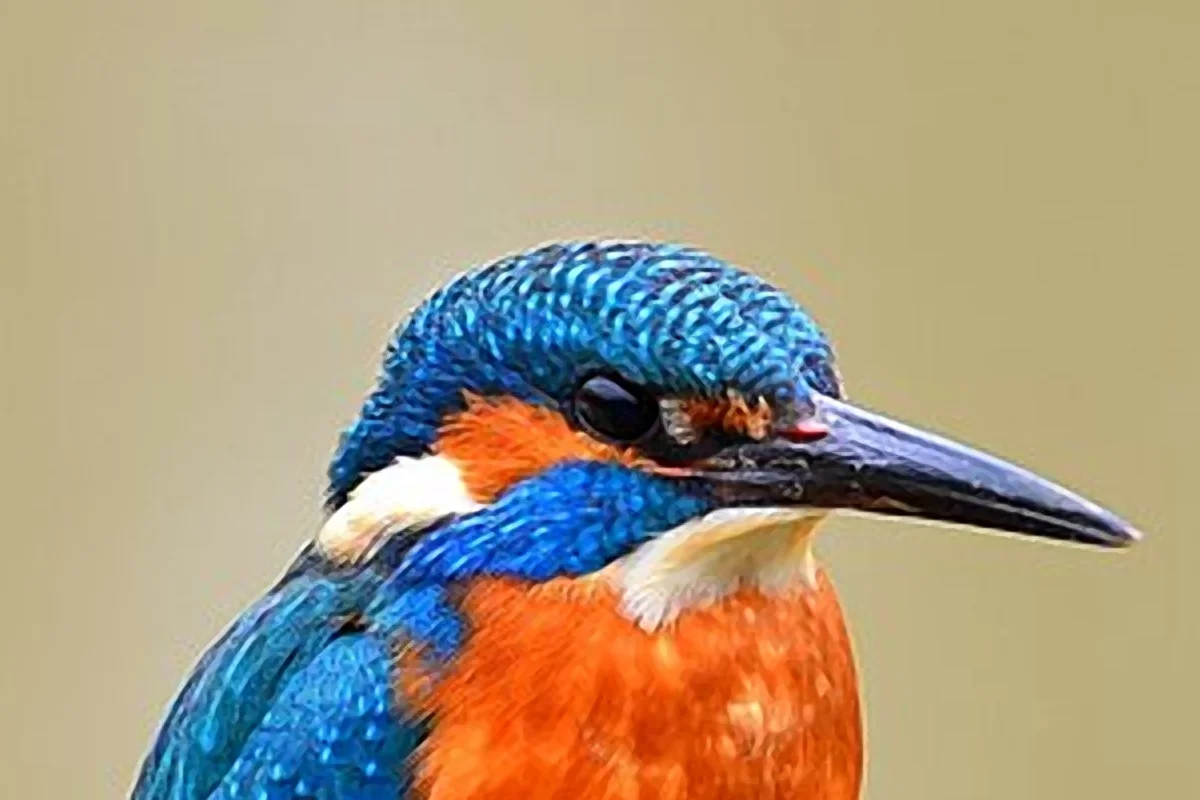
Example: Kingfisher
Comparison mode
Fit
Standard resize
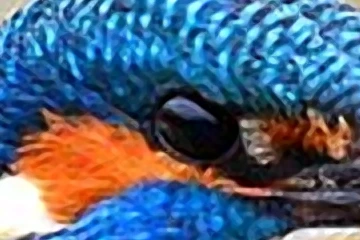
Example: Kingfisher, crop of the 4K Images result
Standard resize 4K Images

1200 × 800

Example: a 1200 × 800 crop of a 960 × 636 photo enlarged to 3840 × 2544; press 100% to see it pixel for pixel. Drop your images anywhere on this window, or use Add images.

Enhance

Apply settings to

Settings apply to every image in the queue.

Output size

4K: long side 3840 px. 2K: 2560 px. Images already that large are skipped.

Image type

Pixel art keeps hard edges and the exact colours.

Detail
35

0 turns sharpening off. Judge sharpness and cleanup at 100% zoom: at Fit the image is scaled down.

Clean noise & JPEG artifacts

For compressed or phone photos.

Advanced: colour & light, output
Colour & light

Add an image to see a live preview.

Preset

A preset only moves the sliders below. Auto = white balance + levels.

0
0
0
0
0
0
0

Stretches brightness to the full range; every colour keeps its hue.

Tone curve and luminance histogram

Output

Auto saves JPG, or PNG for images with transparency and for pixel art.

90

For JPG, WebP and AVIF. PNG ignores it: it is always lossless.

Queue

Your images appear here. Nothing is uploaded.

    Keyboard shortcuts

    ?
    Show this list
    U
    Upscale all
    D
    Download the selected image
    Z
    Download all as ZIP
    + / − / 0
    Zoom in, out, fit (in a viewer)
    Arrow keys
    Pan when zoomed (in a viewer)
    T or hold Space
    Show the original (in a viewer)

    Shortcuts are off while you type in a field.

    • JPG
    • PNG
    • WebP
    • AVIF
    • HEIC (where your browser supports it)

    Works in Chrome, Edge, Firefox and Safari, on computers and phones.

    Everything included

    One tool for sharper, bigger images

    Every step runs on your graphics chip or processor, in your browser. Each picture below is real output of the engine.

    Comparison mode
    Fit
    Standard resize
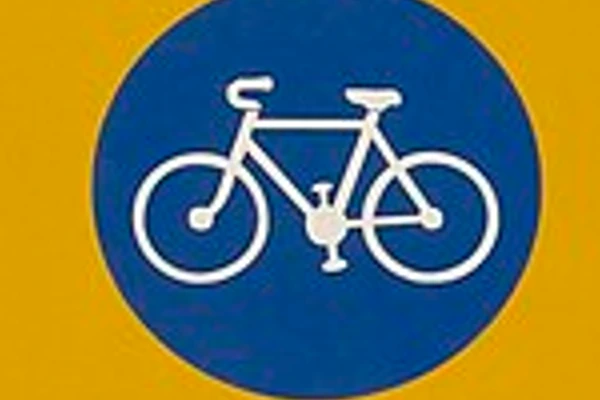
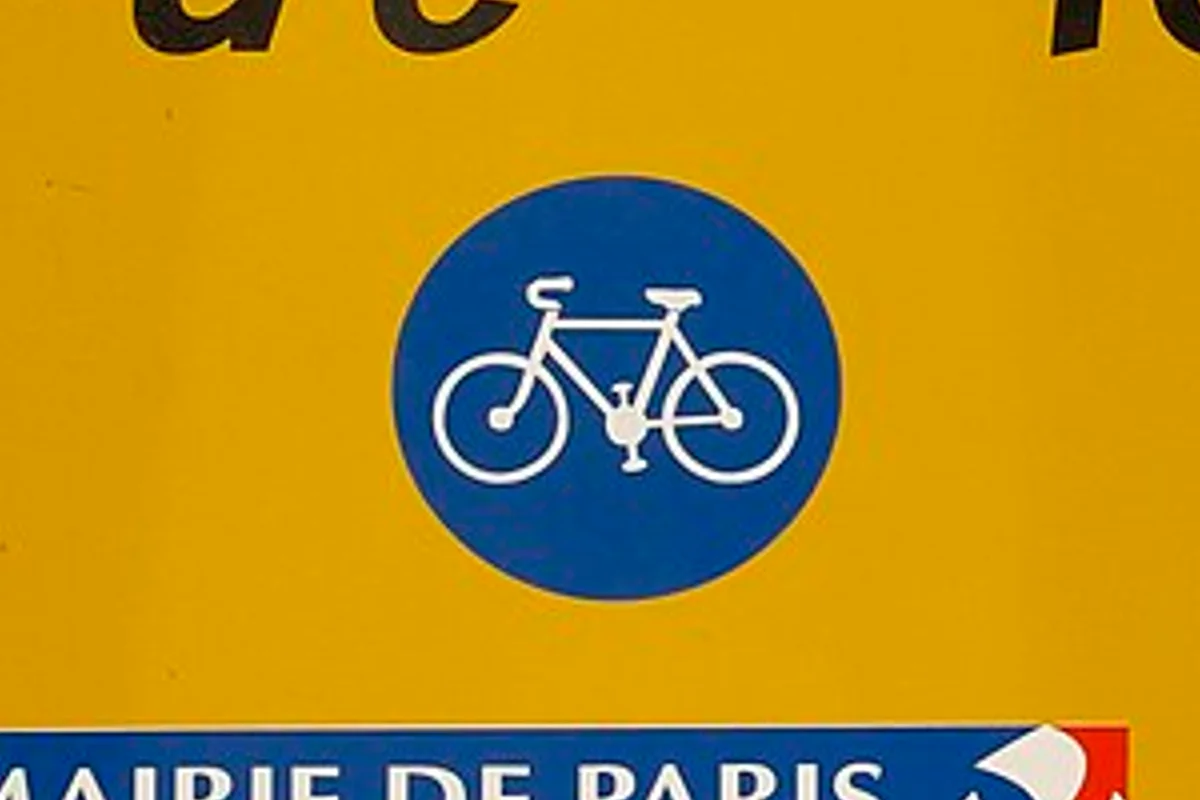
    Street sign: crop of the 4K Images result
    Standard resize 4K Images

    1200 × 800

    Upscaling to 4K

    Edge-aware upscaling (EASU) enlarges along the edges in steps of at most 2×, and adaptive sharpening (RCAS) runs after every step. The same 960 × 715 photo, enlarged to 3840 × 2860, compared with a standard resize.

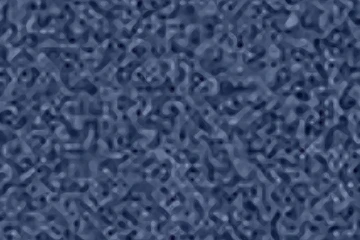
    Noise and JPEG cleanup: Noisy synthetic test image at 4K: cleanup Off vs High

    Noise and JPEG cleanup

    Measures the noise first, then smooths it with an edge-preserving filter; High also removes JPEG blocks.

    Colour & light: Wooden façade at 4K: colour Off vs the Natural preset

    Colour & light

    White balance, levels, exposure, shadows, highlights, vibrance and clarity, with a live preview.

    Pixel-art mode: 32×32 test sprite at ×4: nearest neighbour vs Scale2x/3x

    Pixel-art mode

    Whole-pixel scaling for sprites: hard edges and no new colours.

    Wooden façade: result cropKingfisher: result cropStreet sign: result crop

    Batch and ZIP

    Up to 10 images at a time, each with the batch settings or its own. Download them one by one or together as a ZIP, as JPG, PNG, WebP or AVIF.

    From file to 4K in your browser

    How it works

    Four steps. The first and the last are yours; the middle two run on your device.

    1. Step 1: Add images

      Drop, paste or pick up to 10 JPG, PNG, WebP or AVIF images, 20 MB each. They are read from your disk, not uploaded.

    2. Step 2: Automatic checks

      Pixel art is detected, images already at 4K are skipped, and sizes too big for this device are flagged before anything runs.

    3. Step 3: Enhance

      Cleanup, edge-aware upscaling, adaptive sharpening and colour & light run on your graphics chip, with live progress.

    4. Step 4: Download

      Compare with the original at 100%, then save each image or all of them as a ZIP, as JPG, PNG, WebP or AVIF.

    1080p → 4K on a desktop graphics card (median)
    noise on the test image with cleanup High
    −57%
    ΔE of a grey patch under a colour cast, with auto white balance
    10.2 → 2.2
    of your images uploaded
    0 bytes

    Measured with the engine itself; see how these numbers are produced.

    Image quality comparison

    Sharper than a normal resize

    A standard resize spreads every pixel over a larger area and blurs the edges. 4K Images enlarges along the edges and sharpens them as it goes. It does not invent detail that the photo never had.

    • Edges stay crisp EASU reads the direction of every edge and enlarges along it, in steps of at most 2×.
    • No halos RCAS sharpens in proportion to local contrast and limits itself before it would overshoot.
    • JPEG blocks removed first Cleanup High removes 8×8 compression blocks before enlarging, so they are not enlarged too.
    • Flat areas stay clean Skies and walls are left alone by the sharpener, so their noise is not boosted.
    How the engine works
    Sample image
    Comparison mode
    Fit
    Standard bicubic resize
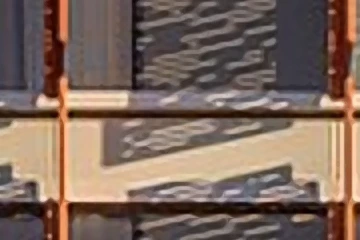
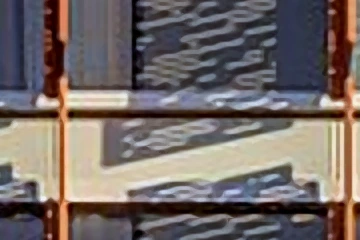
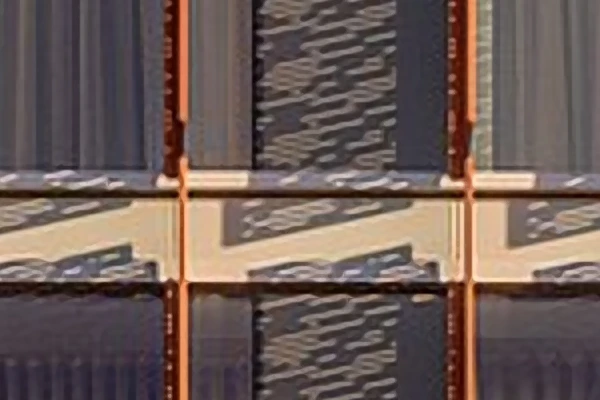
    Wooden façade: 100% crop of the 4K Images result
    Standard bicubic resize 4K Images

    600 × 400

    960 × 640 → 3840 × 2560, default settings (4K, sharpness 35, cleanup off). Crop of 600 × 400 px from the output. Photo: Wilfredor, Wikimedia Commons (CC0 1.0).

    Inside the engine

    Five stages. All on your device.

    Edge-aware upscaling (EASU)

    Default

    EASU, from AMD FidelityFX Super Resolution 1, reads the direction of the edges around every pixel and enlarges along them, so outlines stay crisp instead of turning soft. It runs on your graphics chip in steps of at most 2×.

    1.1 s *

    1920 × 1080 → 3840 × 2160 with default settings, on an AMD Radeon RX 5500 XT

    +3.3% *

    edge contrast at 4K with the default settings, compared with a bicubic resize

    Comparison mode
    Fit
    Bicubic
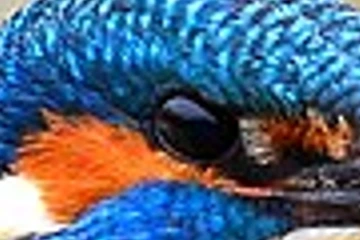
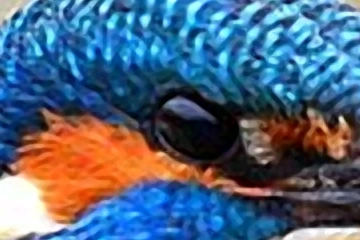
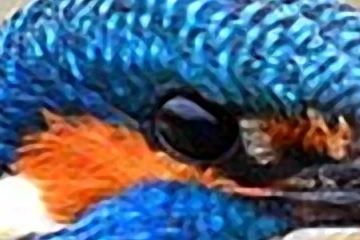
    Real output, 100% crop: Kingfisher at 4K: bicubic resize vs EASU (sharpening off)
    Bicubic EASU

    360 × 240

    Real output, 100% crop: Kingfisher at 4K: bicubic resize vs EASU (sharpening off).
    How this was measured

    Round trip (each sample halved with Lanczos3, then enlarged ×2 and compared with the original): SSIM 0.884 vs 0.878 for bicubic; PSNR 26.61 dB vs 26.48 dB. EASU alone (sharpening off) gives 0.995× the edge contrast of bicubic at 4K: its gain is cleaner, straighter edges rather than stronger ones. Each sample enlarged to 4K with default settings and with sharpness 0, and with bicubic; mean Sobel gradient on the edges of the bicubic output (its strongest 10%), as a ratio.

    Adaptive sharpening (RCAS)

    Default

    RCAS adds sharpness in proportion to local contrast and stops before it would overshoot, so it adds no halos, and flat areas such as skies are left alone. It runs after every enlargement step, while edges are still narrow.

    +3.8% *

    edge contrast at 4K with sharpness 35, compared with sharpening off

    0–100 *

    sharpness is yours to set; 0 turns it off

    Comparison mode
    Fit
    Sharpness 0
    Real output, 100% crop: Kingfisher at 4K: sharpness 0 vs 35
    Sharpness 0 Sharpness 35

    360 × 240

    Real output, 100% crop: Kingfisher at 4K: sharpness 0 vs 35.
    How this was measured

    Round trip: SSIM 0.884 with sharpness 35 vs 0.881 with sharpening off; PSNR 26.61 dB vs 26.56 dB. Judge sharpness at 100% zoom: at Fit the image is scaled down and the difference is hard to see.

    Cleanup & denoise

    Optional

    The engine first measures how noisy the image is, then smooths the noise with an edge-preserving bilateral filter; High also removes the 8×8 blocks left by heavy JPEG compression. Because the filter scales to the measured noise, clean images keep their texture.

    −57% *

    noise (σ 19.8 → 8.5) on a flat patch of the noisy test image, cleanup High

    19.8 → 14.6 *

    the same patch with cleanup Low

    Comparison mode
    Fit
    Cleanup off
    Real output, 100% crop: Noisy synthetic test image at 4K: cleanup Off vs High
    Cleanup off Cleanup High

    360 × 240

    Real output, 100% crop: Noisy synthetic test image at 4K: cleanup Off vs High.

    Colour & light

    Optional

    White balance, exposure, levels, shadows, highlights, vibrance, saturation and clarity, applied on your graphics chip after sharpening. Everything is off by default, and a preset only moves the sliders you can see.

    10.2 → 2.2 *

    ΔE2000 of a grey patch under a colour cast, before → after auto white balance (lower is more neutral)

    ×1.99 *

    linear brightness after +1 EV of exposure (exactly ×2.00 would be ideal)

    Comparison mode
    Fit
    Colour off
    Real output, 100% crop: Wooden façade at 4K: colour Off vs the Natural preset
    Colour off Natural

    360 × 240

    Real output, 100% crop: Wooden façade at 4K: colour Off vs the Natural preset.

    Pixel-art mode

    Optional

    For sprites and pixel art, the image is enlarged in whole-pixel steps with Scale2x/Scale3x or nearest neighbour, so edges stay hard and no new colours appear. Sharpening, cleanup and colour are switched off in this mode.

    0 *

    new colours in a 3840 × 3840 output of a 5-colour sprite

    5792 / 4096 px *

    largest square output on a computer / on iPhone and iPad (memory limit)

    Comparison mode
    Fit
    Nearest
    Real output, 100% crop: 32×32 test sprite at ×4: nearest neighbour vs Scale2x/3x
    Nearest Scale2x/3x

    128 × 128

    Real output, 100% crop: 32×32 test sprite at ×4: nearest neighbour vs Scale2x/3x.

    * Measured on 2026-09-24 with Chromium 153.0.8010.12 on an AMD Radeon RX 5500 XT (Intel(R) Core(TM) i7-9700K CPU @ 3.60GHz), using the three CC0 sample photos and synthetic test images; timings vary with the device. How these numbers are produced.

    Everything is included

    Free, with no catch

    Free

    The work happens in your browser, on your own processor and graphics chip, so there are no servers to pay for, and nothing to charge you for.

    • Free, with no paid plan
    • No sign-up and no account
    • No watermark on the results
    • Nothing uploaded: images stay on your device
    • Batches of up to 10 images, with a ZIP download
    • JPG, PNG, WebP and AVIF output
    • The upscaler, and seven more image tools
    • Size limits set by your device: about 33.6 MP on most computers, 16.8 MP on iPhone and iPad

    Credits

    Built on open source

    The full licence texts are in the third-party notices.

    Tools

    More free image tools

    Every tool runs in your browser. Nothing is uploaded.

    Answers

    Frequently asked questions

    About privacy, sizes, formats and what the engine can and cannot do.

    Want the technical details?

    Every step of the engine, how the numbers on this page are measured, and the open-source credits.

    Is it free?

    Yes. There is no account, no paid plan and no watermark on the results.

    Are my images uploaded?

    No. Images are decoded, enlarged and saved inside your browser. The site has no upload endpoint, so your files never leave your device.

    Will it make a blurry photo sharp?

    It makes edges crisper and can reduce noise and JPEG blockiness, so the enlarged image looks cleaner than a normal resize. It cannot recreate detail that was never captured: a blurry photo stays soft, just larger and cleaner.

    What sizes can I produce?

    4K makes the long side 3,840 px and 2K makes it 2,560 px, keeping the aspect ratio. Images that are already that large are skipped, never shrunk. 2× and 4× multiply both sides up to what your device can hold in memory: about 16.7 megapixels on iPhone and iPad and about 33.5 megapixels on most computers. If a size is too large, the tool tells you what it will produce instead before it starts.

    Which formats are supported?

    You can add JPG, PNG, WebP and AVIF images, and HEIC if your browser can open it. Results can be saved as JPG, PNG, WebP or AVIF. Auto picks JPG for photos and PNG for images with transparency.

    Can I use the results commercially?

    Yes. The images are yours, and we claim no rights to them or to the results.

    Why is it slower on my phone?

    All processing happens on your own device, so speed depends on its processor, graphics chip and memory. Phones have less of each than most computers, and large outputs or AVIF files take longer to produce.
    Free, in your browser

    Upscale your next image to 4K

    Add an image and download a sharper, bigger version in seconds. It never leaves your device.

    • No upload
    • No sign-up
    • No watermark